Why automate script execution?
We have a database that is fed with information from the I90 files, which detail the operation of energy programming units in the Spanish electrical system according to generation schedules.
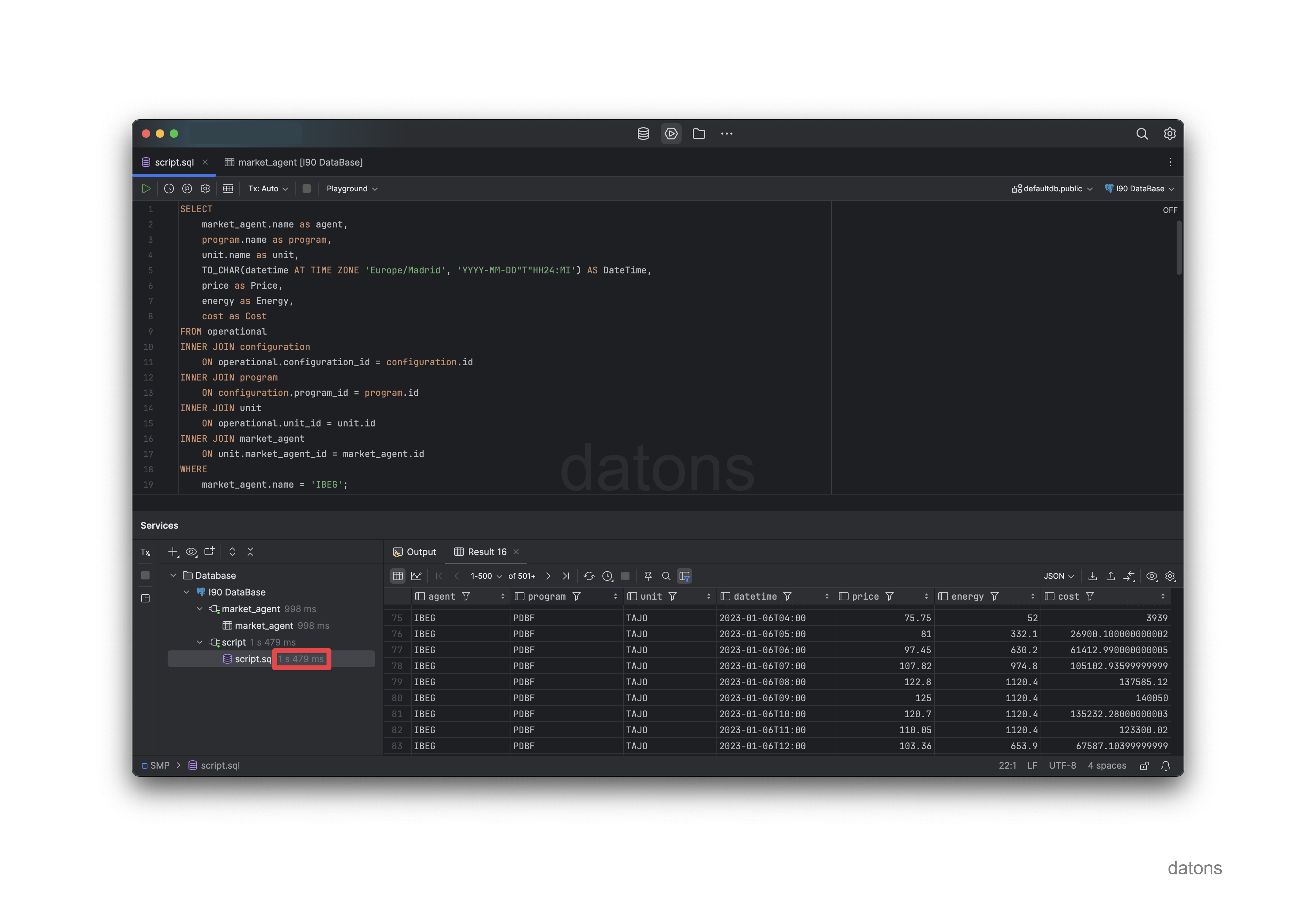
In this article, we explain how to build a database containing preprocessed, normalized, and related data from the I90 files so that users can work with it comfortably.
If the users are energy traders, they will need the latest data updates available.
Red Eléctrica de España (REE), the operator of the Spanish electrical system, publishes a new I90 file every day. For the information to be available in the database, the file must be downloaded and processed.
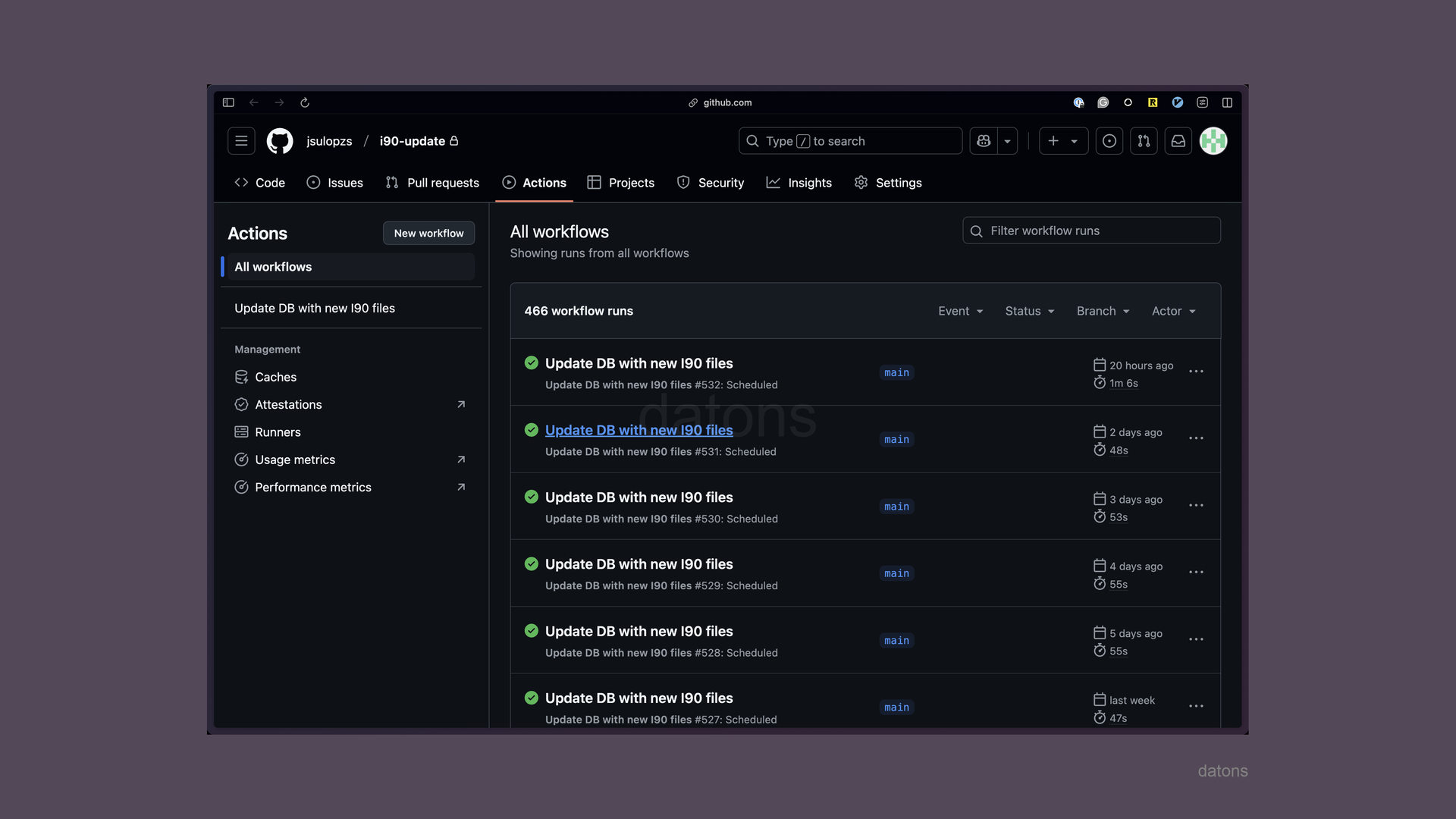
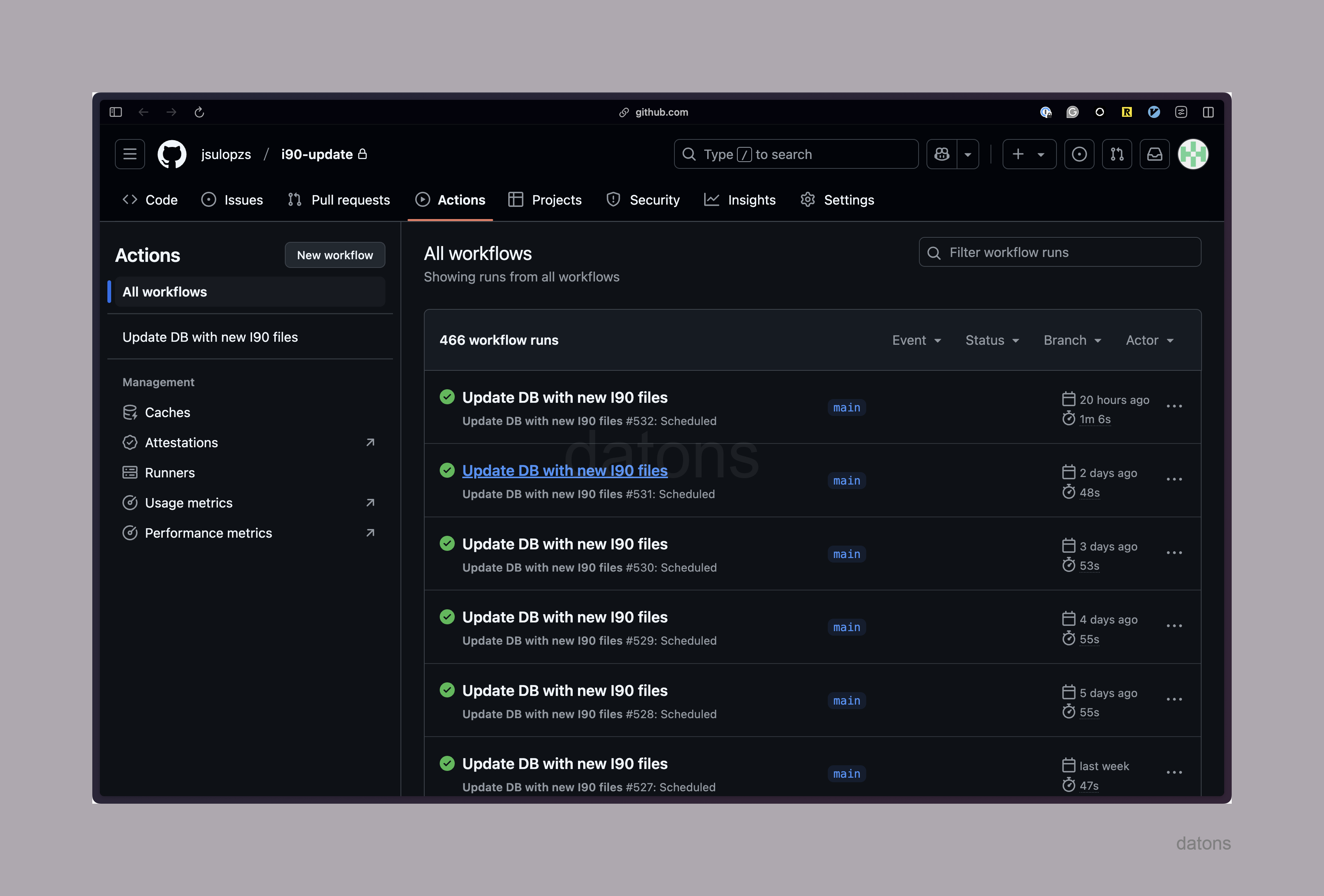
Ideally, this process would run automatically every day without human intervention. For example, below you can see the execution history of a script that runs every day at 03:00.
How to automate script execution?
Schedule script execution with cronjob
This is where cronjob comes into play, a service that periodically executes commands on a computer according to a cron expression. For example, to execute a command every day at 03:00, you would use the expression 0 3 * * *.
If we create the cronjob service on our local computer, it needs to be always active. But we won’t always be working from our computer. So we need a solution that allows us to run the script on a remote server.
There are many ways to run cronjob on a remote server:
- GitHub Actions
- Remote server instance
- Serverless functions with cronjob in the cloud
Serverless means that it is not necessary to rent a server that is active 24/7 to run the script.
The simplest solution to implement is GitHub Actions because we only need a YAML configuration file and upload the repository to GitHub.
GitHub Actions
YAML configuration file
Within the main repository, we create the file structure as follows:
folder/ ├── .github/ │ └── workflows/ │ └── i90-update-python.yml #! ├── requirements.txt ├── update_i90.py └── …
Within the configuration file, we specify the execution frequency with a cron command, which, in our case, will run every day at 03:00.
What will be executed?
The jobs defined within the configuration file.
In our case, we define a job called update-db that will run on a virtual mini-computer (container) with the Ubuntu operating system. After building the container with the operating system, Python and the necessary libraries, which are in requirements.txt, will be installed. Finally, the script update_i90.py will be executed.
#! i90-update-python.yml
name: Update DB with new I90 files

on:
  schedule:
    - cron: "0 3 * * *" # Daily at 03:00
  workflow_dispatch:

jobs:
  update-db:
    runs-on: ubuntu-latest

    steps:
      - uses: actions/checkout@v2

      - uses: actions/setup-python@v2
        with:
          python-version: "3.10"

      - run: |
          pip install --upgrade pip
          pip install -r requirements.txt

      - run: python update_i90.py
Once the configuration file is set up, we must upload the repository to GitHub so that it can be executed automatically every day at 03:00 through GitHub Actions.
Initialize git repository
First, we must initialize the repository locally with git, which is a system, let’s say, a database within the project folder to record changes (create new files, modify existing files, etc.).
git initBy default, the git database is empty and does not take into account the files that are already in the repository.
To record the files in the database, we must add them to the repository and register the modification.
git add .
git commit -m "Initial commit"
Upload repository to GitHub
On GitHub, we create a new repository and link it with the local repository.
You can create it through the GitHub website by following these instructions. But here we are more practical and use the terminal to save time with the web buttons.
gh repo create i90-update --private --source=. --remote=originAutomatically, the repository is created on GitHub and linked with the local repository. Therefore, if you navigate to the following URL, you will see the created repository with its actions.
https://github.com/jsulopzs/i90-update/actionsRun script
Initially, the execution history will be empty. But if you try to run it with the Run workflow button, you will see that after a few seconds, the script execution is launched.
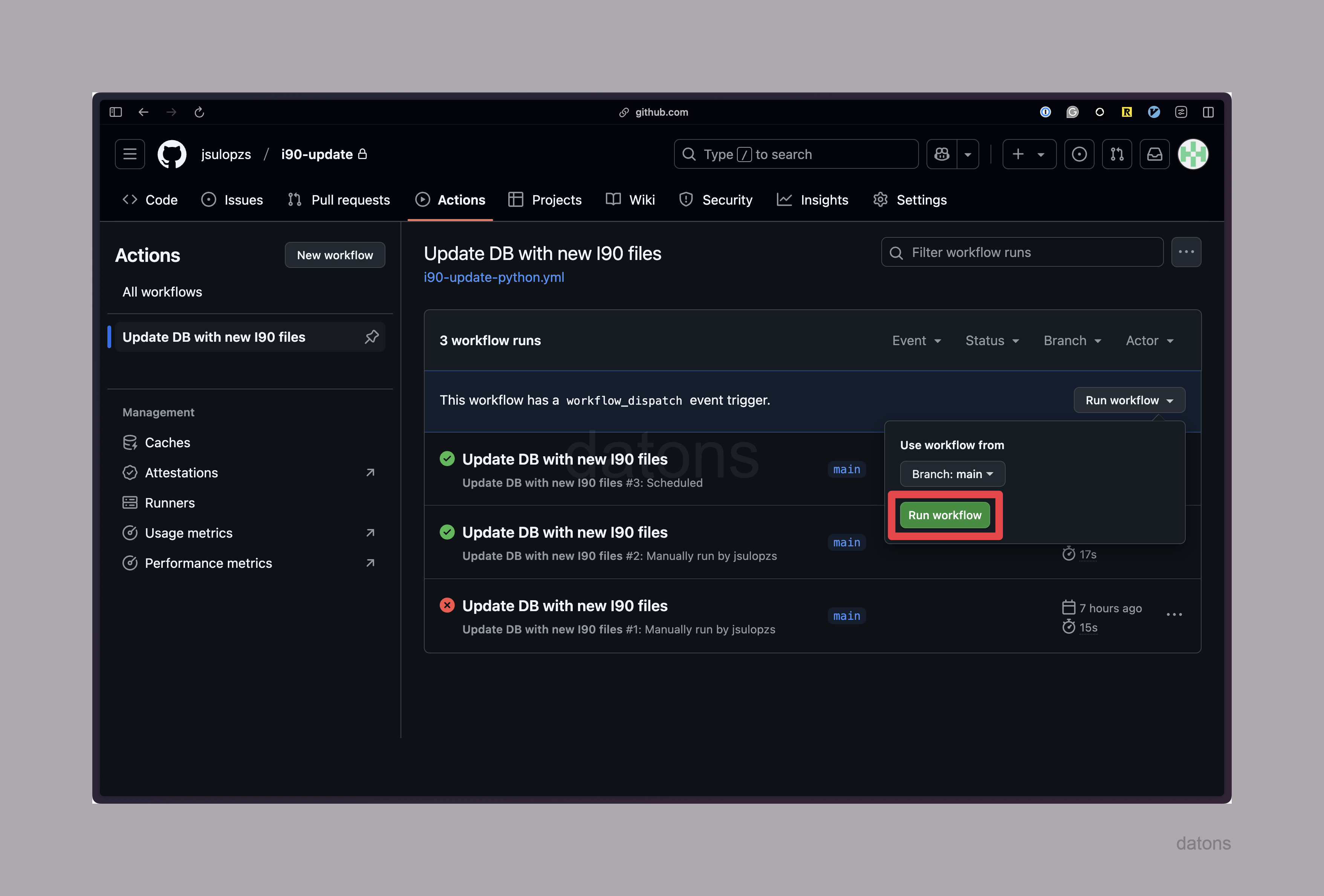
If everything went well, the script is ready to run automatically every day at 03:00, without human intervention.
Execution history
After a few days, you will see the completed execution history.
And that’s how you automate script execution in GitHub Actions.
Conclusions
- Process optimization: Automating scripts with tools like GitHub Actions improves efficiency, reduces errors, and frees up time for strategic tasks.
- Updated data: Keep critical information always up to date, ideal for sectors like energy.
- Scalability: Flexible and adaptable solutions to growth, integrable with other systems.
- Cost reduction: Automating and using serverless technologies reduces operational and infrastructure costs.
- Security: Implement robust measures to protect data and ensure reliable processes.
- Personalized services: Develop tailored solutions according to your business needs.
- Continuous support: Ensure updates, maintenance, and adaptations as needed.
Keep reading
Related articles you might enjoy
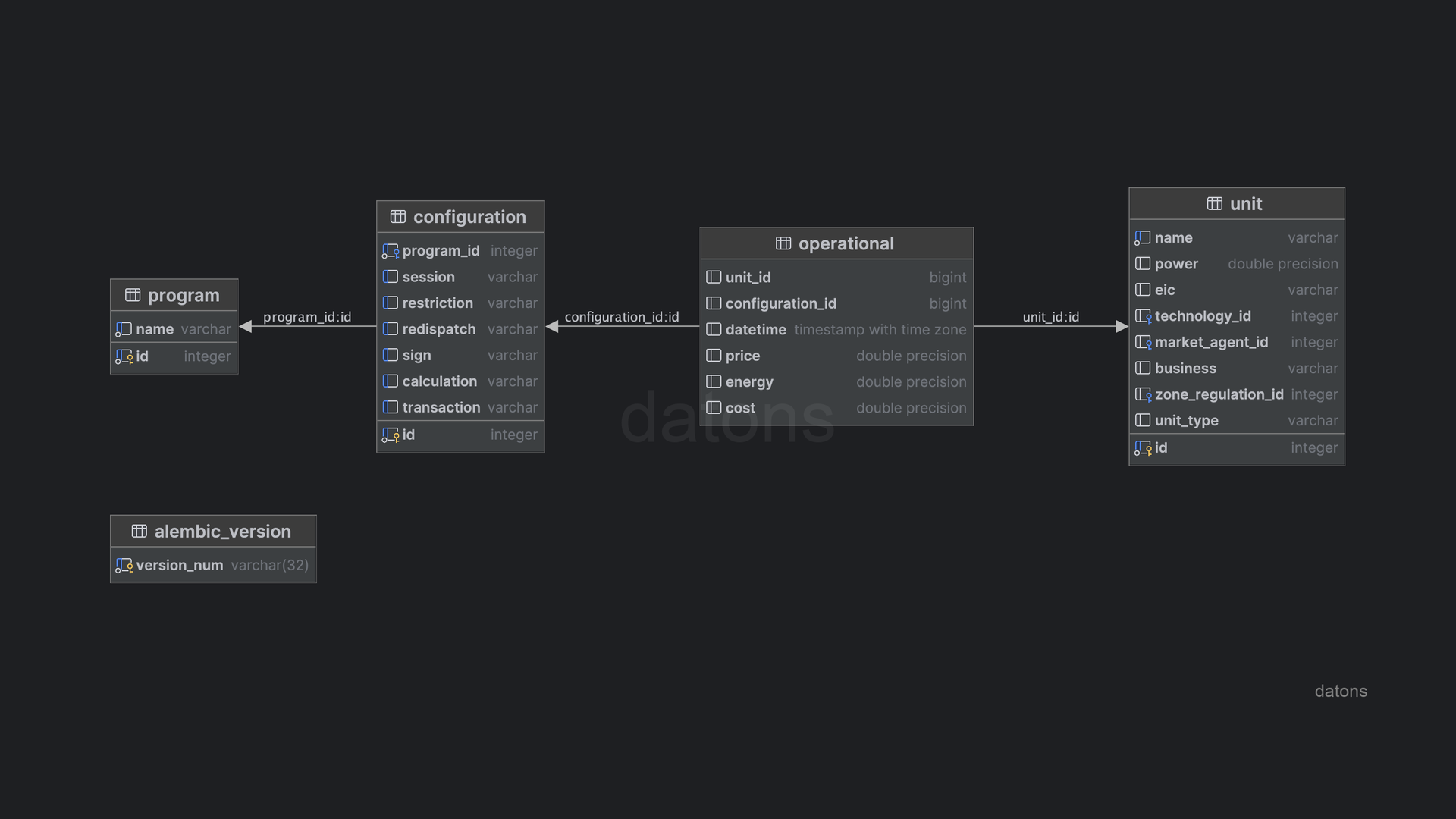
Normalized database for querying I90 files from REE
Understand the process of creating a normalized database to query historical information of energy programming units in the Spanish electrical system with practical examples.
Read
Automate preprocessing of I90 Excel files (REE) in Python
Understand the steps to automate the preprocessing of I90 Excel files, detailing the operation of energy facilities according to daily generation programs.
Read
Analyzing Spanish electricity market data from I90 files
Download, parse, and analyze I90 files from REE using Python — curtailment trends, generation mix, and price correlations for the Spanish electricity market.
Read